

Create Form
Enter all legal organization details and complete mandatory onboarding fields.
Assistant
Payvala Assistant
Suggestions
Press Enter to send · Shift+Enter for new line
A step-by-step interactive manual for managing your institution's profile — from initial registration through to full profile and logo management.
Fields marked with a red asterisk (*) are required. This screen is where the FI enters legal organization details and completes the mandatory onboarding fields. Saving this form creates the institution profile and the next page shown is the organization details screen for post-creation management.
Enter all legal organization details and complete mandatory onboarding fields.
Saving creates the institution profile. The next screen shown is the organization details.
After creation, proceed to profile management, logo update & technical configuration.
VAT or CAC number mandatory for KYC and technical verification.
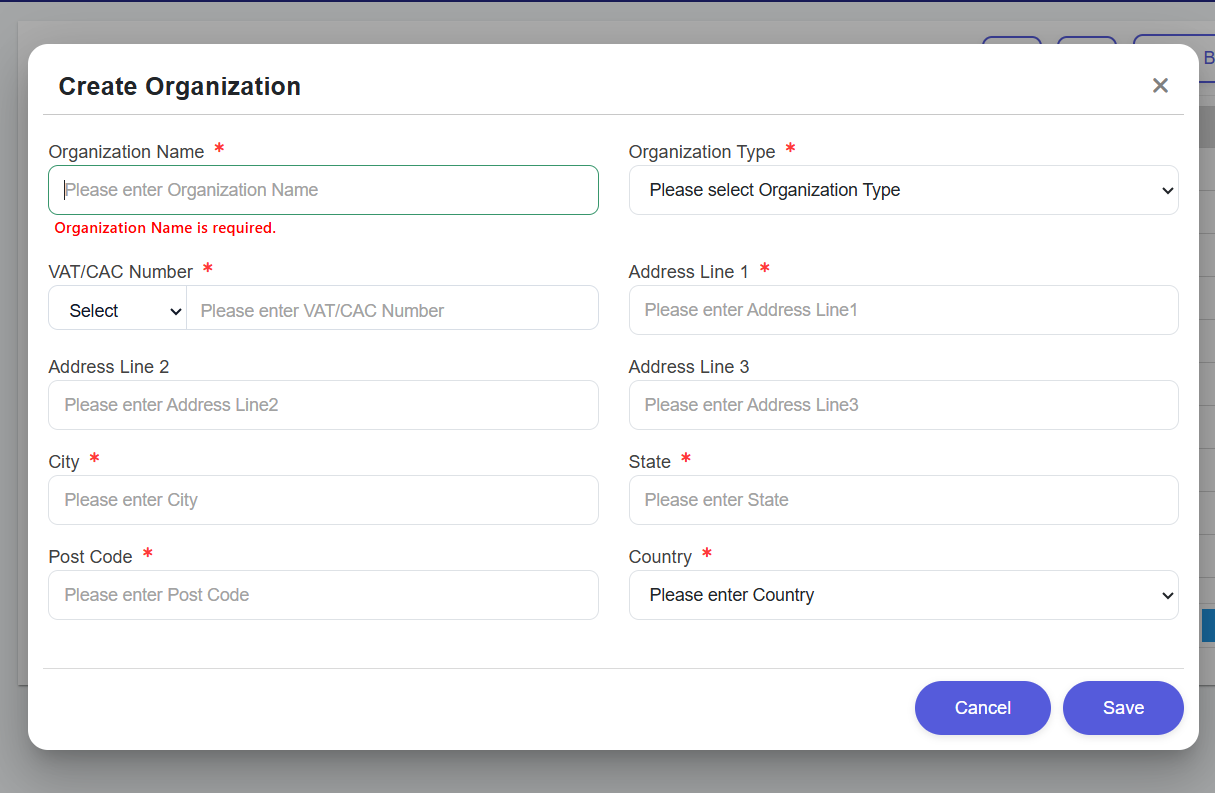
The official legal registered name. This name will appear on all merchant communication.
This classification defines your institution's operational scope. Must be set to Financial Institute to activate FAPI 2.0 security protocols and enable soundbox devices and M2M API integrations.
Your institutional identity must be anchored by either a VAT Number (Value Added Tax) or a CAC Number (Corporate Affairs Commission). Use the Select dropdown to choose the identifier type, then enter the corresponding number. Providing at least one is mandatory for KYC and technical verification.
Complete institutional presence data required for legal anchoring. Address lines 2 & 3 are optional. Country defaults to the onboarded region.
Once created, you can manage your institutional metadata and logo via the Details Page. Use the Edit button to modify fields and Save to commit changes, or Discard to revert.
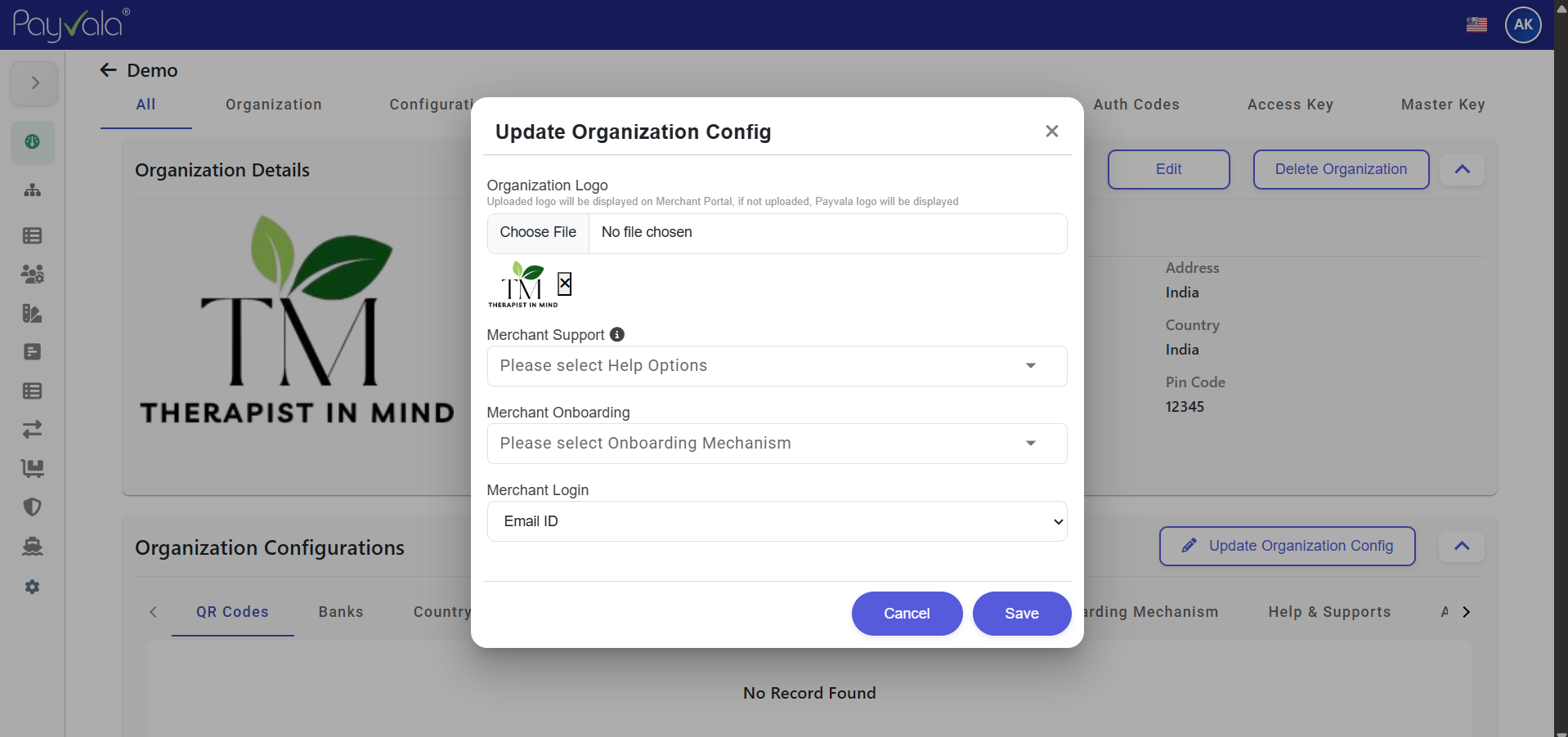
Click the Pulse Circle on the Logo to simulate the update flow. Standard: 512×512px. Updating the logo immediately syncs your branding.
Click the pulsing circle to simulate logo update
Save Changes — Direct Action: When clicked, the portal validates the form and commits edits to the database. Try clicking it here to see the feedback!
Discard Edits — Safety Discard: Reverts the form to the last saved state. Hover to see the warning color, or click to simulate discarding.
Clicking the logo upload area opens the branding update flow where the institution image can be replaced.
After editing organization details, Save commits the changes and keeps you on the details page with updated values.
Discard exits the current edit attempt and returns the page to the last saved organization state.
Payvala is built with enterprise-grade security, 99.9% uptime, and scalable infrastructure.